
How to view UTM data in Hubspot reports
HubSpot can add source tracking tags to marketing email links and use campaign and email identifiers in its reports. But the way those tags are applied is easy to misread.
Custom UTMs can be overwritten, email visits may appear as Direct Traffic, and the values used in campaign reporting do not automatically populate your custom contact properties. HubSpot’s email tracking is separate from the hidden-field setup used to store raw UTM values on contact records.
This guide explains how HubSpot’s source tracking settings work, how Campaign UTM values are created and edited, how to test email links, and where the setup can fail.
What you need before reporting on UTMs in HubSpot
UTM reports are only as reliable as the tracking and capture setup behind them. Before building a report, confirm that HubSpot can see the visit and that the values you plan to analyse are reaching the correct records.
Check that:
The HubSpot tracking code is installed on every external landing page included in your traffic analysis.
Tagged links reach the final landing page with their UTM parameters intact.
Custom fields such as utm_source, utm_medium and utm_campaign already contain data before you build a contact report.
You have permission to create, edit and view the reports your team needs.
Your HubSpot subscription includes the reporting tool you plan to use.
A working setup should capture UTM parameters on HubSpot contacts from a live tagged URL before you start comparing campaigns. A report cannot recover values that were stripped from the URL or never written to the contact record.
Note: Custom single-object reports are available with Professional and Enterprise subscriptions across supported Hubs. Web traffic analysis is available with Marketing Hub or Content Hub Professional and Enterprise, as well as legacy Marketing Hub Basic. Deal-create and revenue attribution reports require Marketing Hub Enterprise.
Stop managing UTMs in a spreadsheet!
Uplifter gives your team a centralised UTM builder with locked dropdowns, a shared taxonomy, and a full audit trail, so clean data is the default, not the goal.
Choose the right HubSpot report for your UTM data
Once your UTM values are being captured on contact records, the next step is reporting on them. In HubSpot, you can look at UTM data in a few different places, but they do not all answer the same question.
A contact-property report shows which UTM values were saved on contacts. Traffic Analytics shows session-level activity. Attribution reports help connect tracked interactions to contacts, deals, or revenue, depending on your HubSpot plan.
Report on UTM values stored on contacts
Start with a contact report if you want to know which tagged links are creating leads. This uses the custom properties you created earlier, such as utm_source, utm_medium, and utm_campaign.
To do that in HubSpot:
Go to Reports and create a new single-object report based on Contacts.
Add a filter where UTM Source is known.
Choose a chart that shows a count of contacts.

HubSpot report builder showing a contact report filtered by known UTM Source values.
You can then group the report by UTM Source to see which sources are creating contacts. Then add UTM Campaign as a breakdown if you want to compare campaigns inside each source.
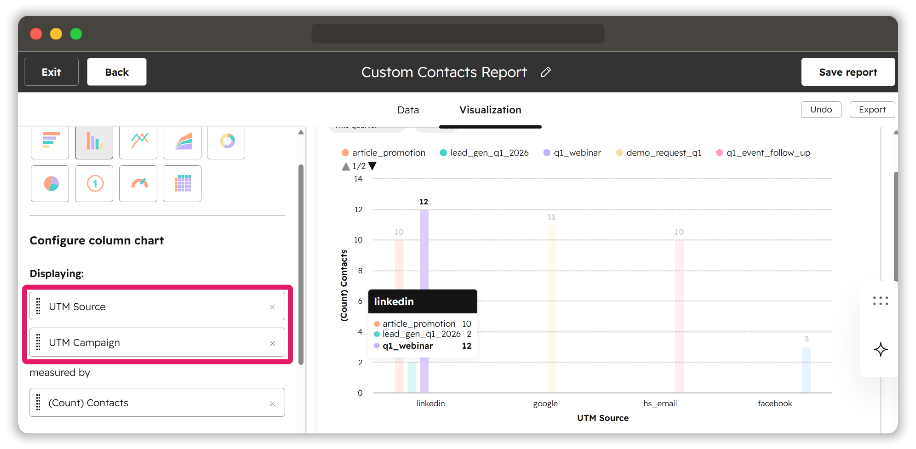
HubSpot contacts report grouped by UTM Source with UTM Campaign used as a breakdown.
This report gives you reliable answers to questions like:
Which sources are creating the most contacts?
Which campaigns are driving form submissions?
Which utm_content values are working best for creative tests?
Which utm_term values are producing contacts from paid search?
Use this report when your focus is lead creation, not website traffic.
Use web traffic analysis for session-level UTM reporting
HubSpot also has UTM reporting inside Web traffic analytics. This is separate from your custom contact-property report.
The contact report shows UTM values saved on contacts. Traffic Analytics shows website sessions and page activity linked to UTM parameters.
If you want to analyse UTM-tagged visits in HubSpot:
Go to Web traffic analysis.
Open the UTM Parameters view.
Choose the parameter you want to analyse, such as Campaign, Source, or Medium.
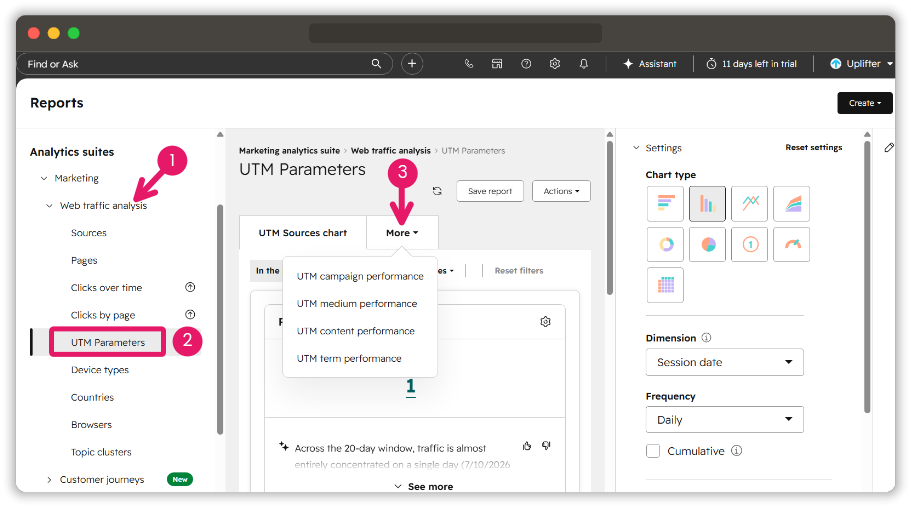
HubSpot UTM Parameters report inside Web traffic analysis for session-level campaign reporting.
Use this view when you want to understand traffic behaviour. For example, it can help you see how many sessions a campaign drove, which source brought the most visits, or how UTM-tagged traffic behaved before a form submission.
Optional for Enterprise accounts: use attribution reporting for deals and revenue
If you want to connect UTM activity to pipeline or revenue, a basic contact report will not be enough. You need deal associations, reliable deal data, and access to HubSpot’s revenue attribution reporting.
There are two places you can do this in HubSpot. You can open an individual campaign record, go to the Attribution tab, and switch to Revenue attribution. Or you can go to Reports, open the attribution report builder, and create a Revenue attribution report using UTM Campaign as a dimension.
For revenue attribution to show data, the deal must be in a closed-won stage, associated with at least one contact, and populated with Amount, Create date, and Close date. If those fields are missing, the report may not show the revenue you expect.
Note: HubSpot’s campaign revenue attribution and revenue attribution report builder are available on Marketing Hub Enterprise. So treat this as an optional Enterprise-only reporting path, not a default setup for every HubSpot account.
Why HubSpot and GA4 may not match
If you also use GA4, the same tagged URLs can feed Google Analytics at the same time. When someone lands on your site through a URL with utm_source , utm_medium , and utm_campaign , GA4 can use those values in its acquisition reports.
That means you do not need a separate set of campaign tags for HubSpot and GA4. One consistent UTM structure can support both tools.
That said, HubSpot and GA4 do not process traffic identically. They use different traffic source logic, different attribution models, and different session handling rules. Because of that, it is normal for campaign totals in HubSpot and GA4 to be close but not identical.
A good way to handle this is:
Use HubSpot to understand contacts, deals, and CRM-connected outcomes.
Use GA4 to understand broader traffic and acquisition behavior across your site.
How to report on first and latest-touch UTM values
When both sets of properties are available, HubSpot can show the campaign that first brought a contact in alongside the campaign linked to their latest conversion. The main UTM fields hold the most recently captured values, while the protected _original fields keep the first set recorded through a form.
In a contact report, compare fields such as utm_source_original with utm_source, utm_campaign_original with utm_campaign, and utm_medium_original with utm_medium. From there, you can:
Group contacts by original source and break the chart down by the latest source
Compare first-touch campaigns with later conversion campaigns
Filter for contacts whose original and current values differ
Compare lifecycle stage or lead quality by original campaign
These comparisons only work when the original and current fields are stored separately. Setting up first and latest-touch UTM attribution in HubSpot gives the report two stable sets of values to work with.
Common HubSpot UTM reporting problems
A working UTM setup can still produce reports that look incomplete or contradictory. Before changing the tracking, check the report type, its filters and the data scope HubSpot is using.
The contact report is empty
Start with the contact records themselves. A contact report can only use values that were saved to CRM properties, so an empty utm_source or utm_campaign field will leave the report with nothing to show.
Also check that:
Contacts is selected as the data source
The report uses the correct custom UTM property
The is known filter is applied to the intended field
The date range includes the contacts used for testing
The UTM Parameters report has no traffic
Open the final landing-page URL and make sure the UTM parameters are still present after any redirects. The page also needs a working HubSpot tracking code, and the link must have received at least one visit during the selected reporting period.
Test traffic can be missed for other reasons. Your IP may be filtered from HubSpot reporting, while cookie choices or browser blockers can prevent the page view from being recorded.
The same campaign appears under several names
HubSpot treats Q1 Webinar, q1_webinar and q1-webinar as different values. Once those links have been used, the reports will not automatically combine them into one campaign row.
Standardise the naming before the next launch. For older data, decide whether the separate values should remain as part of the historical record or be cleaned outside the original reports.
The latest test submission is not visible yet
Web traffic data does not always appear immediately. HubSpot says Web traffic analysis generally refreshes around every 40 minutes, although this should be treated as a typical delay rather than a fixed promise for every report.
Historical numbers can also change later if HubSpot finds better source information and reprocesses the traffic. Give the report time to update before assuming the setup has failed.
The revenue attribution report is empty
Check the subscription first, as revenue attribution is not available in every HubSpot account. Then review whether the deal and its related activity meet the report’s requirements.
The deal should be closed won, fall within the report’s date range and be connected to the relevant contact interactions before it closed. Missing associations or ineligible activity can leave the report empty even when the deal exists in HubSpot.
Campaign metrics changed after an asset was associated
This is usually a difference in reporting scope rather than a tracking fault. HubSpot’s campaign overview only includes an asset’s performance from the point at which that asset was associated with the campaign.
You may find cases where the individual asset report may still show activity from before the association. As a result, the campaign overview and the asset-level report can show different totals while both are working as intended.
Keep HubSpot UTM reports consistent
HubSpot can only group the values it receives. Small differences in casing, separators or campaign structure can split one campaign across several contact, traffic and attribution rows.
Set clear rules for utm_source, utm_medium, utm_campaign, utm_term and utm_content before links go live. A shared UTM naming convention helps keep those values consistent across HubSpot, GA4 and other reporting tools.
How Uplifter solves this: Uplifter’s free UTM builder helps create structured links for individual campaigns. When several marketers or agencies manage campaign URLs, the UTM management tool gives them a shared place to apply naming rules and organise the links used across different platforms.
Uplifter governs link creation before the campaign data reaches HubSpot. HubSpot remains responsible for traffic tracking, form capture, contact properties, attribution and reporting.
Free download: UTM governance checklist
33 expert-backed steps to clean UTM data, including the exact spreadsheet structure and the governance layer that makes it work.
Ready to replace your spreadsheet?
Uplifter gives your team a governed UTM builder with locked dropdowns, a shared taxonomy, and a full audit trail. Set up in minutes, not months.
Try Uplifter